
Get PDF Form Field Names and Values in Python
The usual answers to “python read pdf form fields” give you raw PDF objects to decode:
values as byte strings or names like /Yes, a radio group
as a list of widgets whose state you work out yourself, a different class for every field type.
And none of them tells you what a field called Text12 actually asks for.
Send the form's URL to Apdf instead and get every field as plain JSON: its name, type and value in a Python-friendly shape, the options of radios and dropdowns, the required flag — and the question printed next to it on the page.
List the fields of a blank form
Here is the form: a one-page rental application with text fields, a dropdown, a radio group, checkboxes and a signature box.
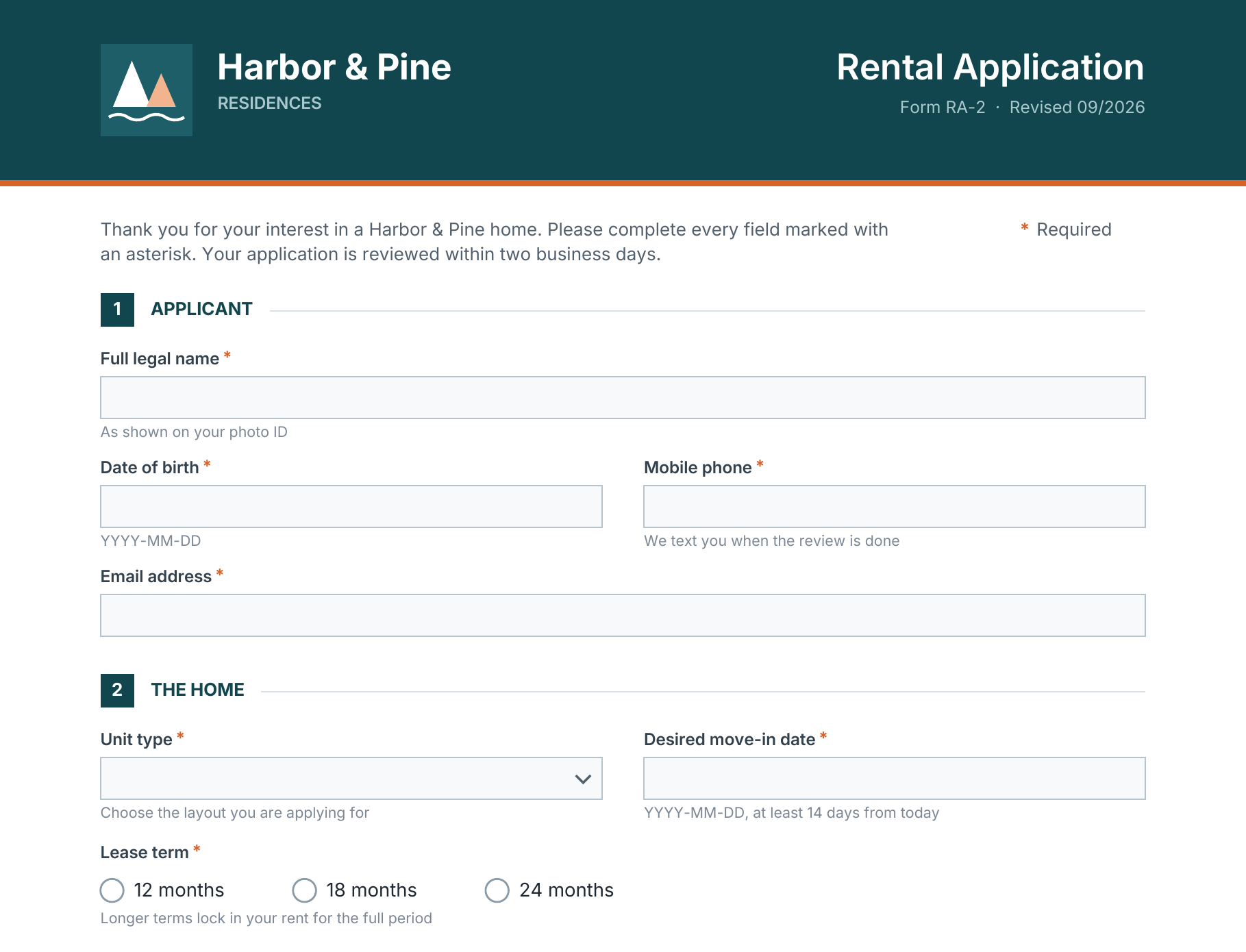
The endpoint takes the URL of the PDF and answers right away with its fields. Save this as
read_form.py — the next steps import from it:
import requests

API_TOKEN = "YOUR_API_TOKEN"
BASE_URL = "https://apdf.io/api"
HEADERS = {"Authorization": f"Bearer {API_TOKEN}", "Accept": "application/json"}


def read_form(pdf_url):
    """Return the form fields of the PDF behind the URL."""
    response = requests.post(f"{BASE_URL}/pdf/form/read", headers=HEADERS, data={"file": pdf_url})
    response.raise_for_status()
    return response.json()["fields"]


def question(field):
    """What the field asks for: the label stored in the PDF, else the caption printed beside it."""
    if field["label"]:
        return field["label"]
    text = field["context"]["text"]
    sides = ("right", "left", "above") if field["type"] == "checkbox" else ("left", "above")
    caption = next((text[side] for side in sides if text[side]), field["name"])
    return caption.rstrip(" *")


if __name__ == "__main__":
    for field in read_form("https://files.harborpine.example/forms/rental-application.pdf"):
        required = "required" if field["required"] else ""
        print(f"{field['name']:<20} {field['type']:<10} {required:<9} {question(field)}")
        if field.get("options"):
            print(f"{'':<42}options: {', '.join(field['options'])}")
Run it, and the form explains itself:
applicant_name       text       required  Full legal name of the applicant
date_of_birth        text       required  Date of birth of the applicant
phone                text       required  Mobile phone
email                text       required  Email address for all lease correspondence
unit_type            combobox   required  Type of unit applied for
                                          options: Studio, 1 bedroom, 2 bedrooms, 3 bedrooms
move_in_date         text       required  Desired move-in date
lease_term           radio      required  Length of the lease
                                          options: 12 months, 18 months, 24 months
employer             text                 Current employer
monthly_income       text       required  Monthly net household income in USD
occupants            text       required  Number of occupants
pets                 checkbox             Applicant has pets
                                          options: Yes
pet_details          textarea             Pet details
screening_consent    checkbox   required  Consent to credit and rental history screening
                                          options: Yes
applicant_signature  signature            Signature of the applicant
date_signed          text                 Date
Every field arrives like these two from the response — a text field and the radio group:
[
    {
        "name": "phone",
        "type": "text",
        "label": null,
        "value": "",
        "page": 1,
        "required": true,
        "read_only": false,
        "context": {
            "description": null,
            "position": {
                "x": 311.6,
                "y": 232,
                "width": 231.6,
                "height": 20
            },
            "visible": true,
            "text": {
                "left": null,
                "right": null,
                "above": "Mobile phone *",
                "below": "We text you when the review is done",
                "row": null,
                "column": null,
                "inside": null
            }
        }
    },
    {
        "name": "lease_term",
        "type": "radio",
        "label": "Length of the lease",
        "value": null,
        "page": 1,
        "required": true,
        "read_only": false,
        "options": [
            "12 months",
            "18 months",
            "24 months"
        ],
        "context": {
            "description": null,
            "position": {
                "x": 47.5,
                "y": 419.6,
                "width": 11.9,
                "height": 11.9
            },
            "visible": true,
            "text": {
                "left": null,
                "right": "12 months",
                "above": "Lease term *",
                "below": "Longer terms lock in your rent for the full period",
                "row": null,
                "column": null,
                "inside": null
            },
            "options": [
                {
                    "value": "12 months",
                    "position": {
                        "x": 47.5,
                        "y": 419.6,
                        "width": 11.9,
                        "height": 11.9
                    },
                    "text": {
                        "left": null,
                        "right": "12 months",
                        "above": "Lease term *",
                        "below": "Longer terms lock in your rent for the full period",
                        "row": null,
                        "column": null,
                        "inside": null
                    }
                },
                {
                    "value": "18 months",
                    "position": {
                        "x": 139.6,
                        "y": 419.6,
                        "width": 11.9,
                        "height": 11.9
                    },
                    "text": {
                        "left": null,
                        "right": "18 months",
                        "above": null,
                        "below": "Longer terms lock in your rent for the full period",
                        "row": null,
                        "column": null,
                        "inside": null
                    }
                },
                {
                    "value": "24 months",
                    "position": {
                        "x": 231.6,
                        "y": 419.6,
                        "width": 11.9,
                        "height": 11.9
                    },
                    "text": {
                        "left": null,
                        "right": "24 months",
                        "above": null,
                        "below": null,
                        "row": null,
                        "column": null,
                        "inside": null
                    }
                }
            ]
        }
    }
]
label is the description stored in the PDF (the tooltip a form
designer can add), and many forms don't have one — like phone.
That's where context.text helps: the printed caption above the box,
the hint below it, and for checkboxes the sentence to their right. It's read from the page layout,
so treat it as a strong hint rather than a guarantee. The radio group arrives as one field with its
options, no widgets to stitch together.
s3.generate_presigned_url in boto3). Forms that exist only as
XFA, without regular form fields, are rejected with a 422.
Turn a filled form into a dict
A filled form comes back from the same call — now with values. Add two helpers to
read_form.py: one maps field names to values, the other
lists the required fields that were left empty:
def answers(fields):
    """Map each field name to the value it holds."""
    return {field["name"]: field["value"] for field in fields}


def missing_answers(fields):
    """The names of the required fields that were left empty."""
    return [field["name"] for field in fields if field["required"] and field["value"] in ("", None, False)]
Then check an incoming application with check_application.py:
from pprint import pprint

from read_form import answers, missing_answers, read_form

fields = read_form("https://files.harborpine.example/applications/application-okafor.pdf")

pprint(answers(fields), sort_dicts=False)
print("Missing required answers:", missing_answers(fields) or "none")
{'applicant_name': 'Daniel Okafor',
'date_of_birth': '1991-04-12',
'phone': '+1 207 555 0148',
'email': 'daniel.okafor@example.com',
'unit_type': '2 bedrooms',
'move_in_date': '2026-12-01',
'lease_term': '12 months',
'employer': 'Casco Bay Logistics',
'monthly_income': '6200',
'occupants': '2',
'pets': True,
'pet_details': 'One dog: Labrador retriever, 30 kg',
'screening_consent': True,
'applicant_signature': None,
'date_signed': '2026-11-02'}
Missing required answers: noneNo decoding needed — every value already has a shape Python can use:
- Text fields and multi-line fields are strings,
""when empty. - A single checkbox is
TrueorFalse. - Radio groups and dropdowns hold the selected option as a string, or
None. - A multi-select list box holds a list of options.
- Signature fields are listed but carry no value — they can't be filled, only signed.
Run the same script on Lucas Bernard's application, which skipped two required answers:
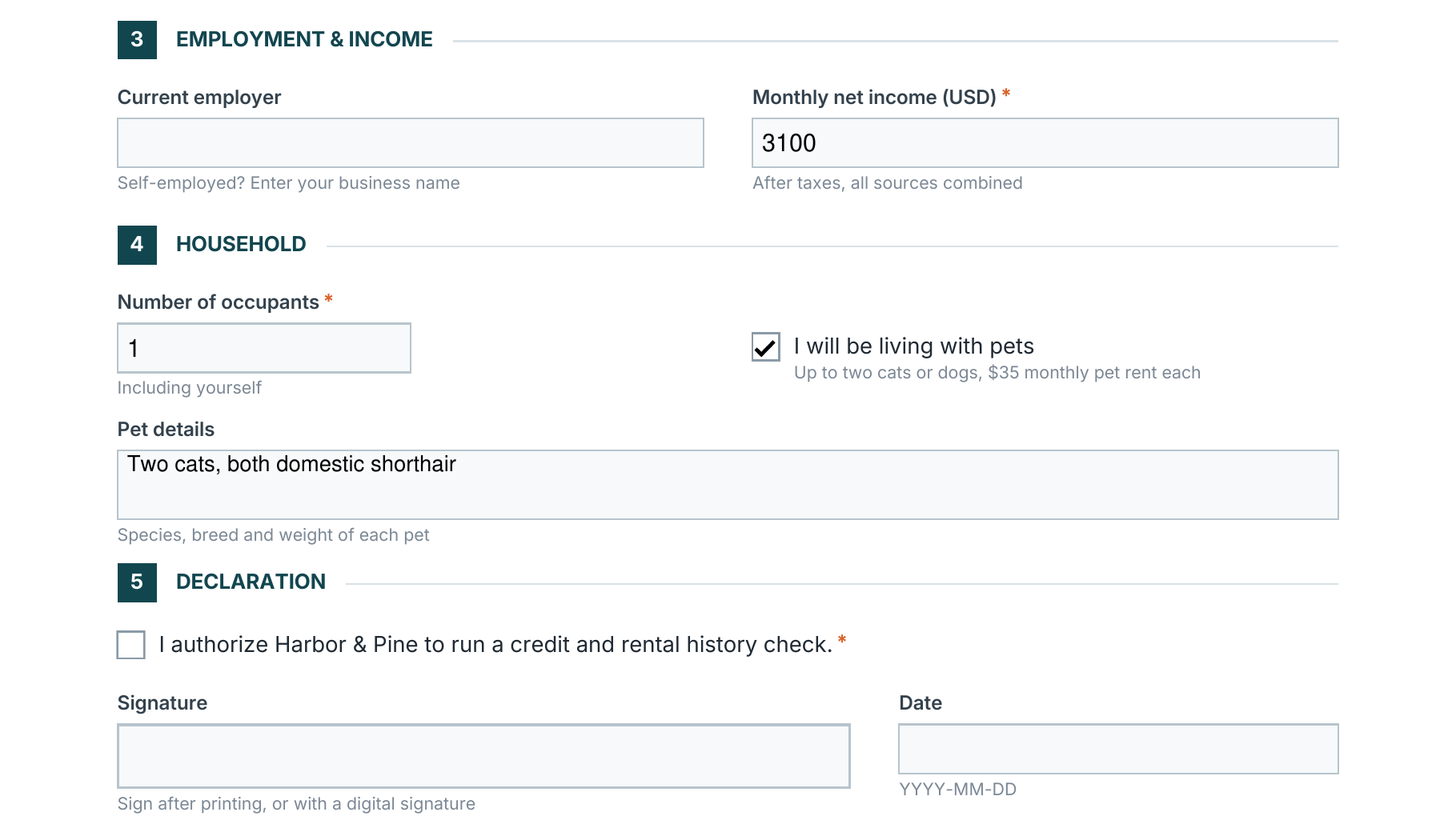
Missing required answers: ['phone', 'screening_consent']Export a folder of filled forms to CSV
The applications pile up in a folder on your file server or bucket. Loop over their URLs, put
each form's answers in a row, and write one CSV — with a column that flags incomplete
applications. Save it as export_csv.py:
import csv

from read_form import answers, missing_answers, read_form

applications = [
    "https://files.harborpine.example/applications/application-okafor.pdf",
    "https://files.harborpine.example/applications/application-raman.pdf",
    "https://files.harborpine.example/applications/application-bernard.pdf",
]

rows = []
for url in applications:
    fields = read_form(url)
    row = {"file": url.rsplit("/", 1)[-1], **answers(fields)}
    row.pop("applicant_signature")
    row["missing"] = " ".join(missing_answers(fields))
    rows.append(row)
    print(f"{row['file']}: {row['applicant_name']}, missing: {row['missing'] or 'nothing'}")

with open("applications.csv", "w", newline="") as f:
    writer = csv.DictWriter(f, fieldnames=rows[0].keys())
    writer.writeheader()
    writer.writerows(rows)
application-okafor.pdf: Daniel Okafor, missing: nothing
application-raman.pdf: Priya Raman, missing: nothing
application-bernard.pdf: Lucas Bernard, missing: phone screening_consent
And applications.csv opens straight in your spreadsheet:
file,applicant_name,date_of_birth,phone,email,unit_type,move_in_date,lease_term,employer,monthly_income,occupants,pets,pet_details,screening_consent,date_signed,missing
application-okafor.pdf,Daniel Okafor,1991-04-12,+1 207 555 0148,daniel.okafor@example.com,2 bedrooms,2026-12-01,12 months,Casco Bay Logistics,6200,2,True,"One dog: Labrador retriever, 30 kg",True,2026-11-02,
application-raman.pdf,Priya Raman,1988-09-30,+1 207 555 0193,priya.raman@example.com,1 bedroom,2026-11-20,24 months,Maine Medical Center,5400,1,False,,True,2026-11-01,
application-bernard.pdf,Lucas Bernard,1996-02-17,,lucas.bernard@example.com,Studio,2027-01-05,18 months,,3100,1,True,"Two cats, both domestic shorthair",False,,phone screening_consent
The columns are the field names, so the CSV keeps its shape for every copy of the same form. Each read counts as one PDF operation, so a folder of three hundred applications is three hundred of your monthly operations.
Where to go from here
You can read any form now — or skip the PDFs going back and forth.
Related tutorials
Convert Word to PDF in Python — Without Microsoft Word on Your Server
docx2pdf needs Microsoft Word, and an office suite on the server needs babysitting. Send the .docx URL to the Apdf API instead and download the PDF — one script for a single document, and a webhook receiver that converts a whole batch of client reports without polling.
Add Page Numbers and Headers to PDFs with Python
Add consistent page numbers, headers, or footers to existing PDF documents using Python and the Apdf Overlay API. Perfect for preparing reports for distribution without regenerating the original documents.
Convert Scanned PDFs to Searchable Documents with Python
Transform image-based scanned PDFs into fully searchable documents using Python and the Apdf OCR API. Perfect for digitizing paper archives, enabling text selection, and making legacy documents ready for modern search systems.
Your code made the PDF.
Then it went dark.
Opened, read, re-read, dropped on page 4 — you never see any of it. Share the PDFs you generate through Apdf recipient links, and every signal becomes something you can act on: ping Slack, update the CRM, let an agent follow up. Same account, same API token, one more call.
API · Webhook · MCP