
Convert Email Attachments to PDF Automatically
Contracts arrive as Word files, invoice summaries as spreadsheets, kickoff decks as PowerPoint. Your archive wants PDFs — files that look the same on every device and that nobody edits by accident. So someone opens each attachment, exports it, downloads it and drags it into the right folder. Every time.
In this tutorial you'll hand that job to a Zap: every Office attachment that lands in Gmail is converted to PDF by Apdf and filed in Google Drive. No code, and no Microsoft Office anywhere in the loop.
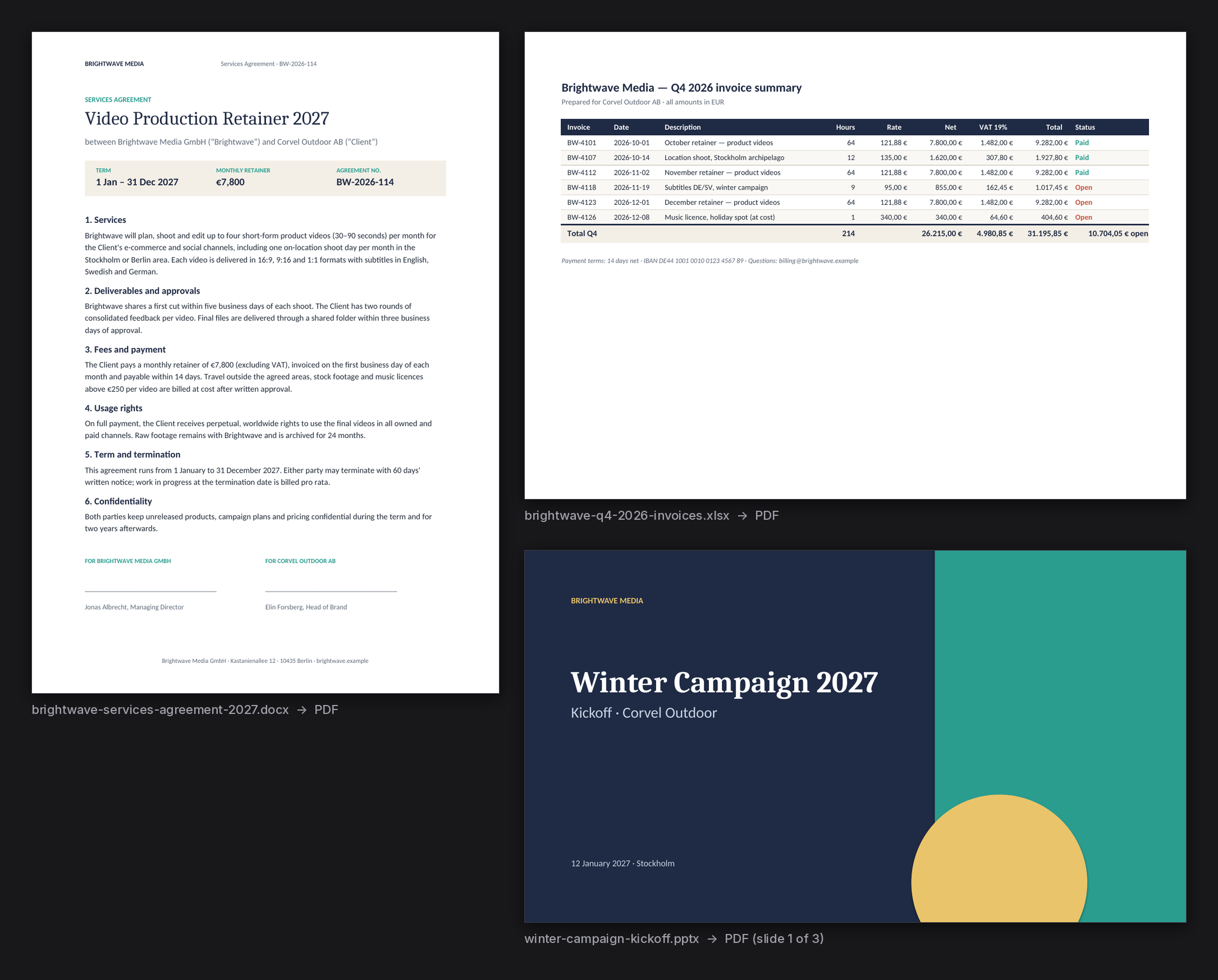
brightwave-q4-2026-invoices.xlsx → PDF in Drive · 1 page
winter-campaign-kickoff.pptx → PDF in Drive · 3 pages
Connect Apdf to Zapier
The Zap authenticates with an API token. Create one in the Apdf dashboard under API → Tokens, then connect the Apdf app in Zapier:
- Create a new Zap. You'll add the Apdf step in a moment — Zapier asks for the connection the first time you pick an Apdf action.
- Paste the token into the API token field. A token belongs to one workspace, so every step runs against that workspace.
Behind the scenes, every conversion the Zap runs is one call to the Office to PDF API. The request the action sends for each attachment looks like this:
curl -X POST https://apdf.io/api/pdf/file/convert \
  -H "Authorization: Bearer YOUR_API_TOKEN" \
  -H "Accept: application/json" \
  -d file="https://zapier-files.example.com/attachment/winter-campaign-kickoff.pptx" \
  -d async=true \
-d webhook_url="ZAPIER_CALLBACK_URL"Trigger on every new attachment
- Pick Gmail as the trigger app and New Attachment as the event, then connect the inbox the attachments arrive in.
-
Narrow the Search String to received mail with Office files — it takes
regular Gmail search operators:
-in:sent {filename:docx filename:xlsx filename:pptx} - Send yourself a test email with an Office attachment and click Test trigger.
New Attachment runs the Zap once per attachment, not once per email — so an email with a contract and a spreadsheet becomes two separate conversions, each with its own PDF.
Let only Office files through
The search string picks the emails, but the trigger still fires for every attachment on them — including the logo in the sender's signature and any PDF they attached. Those can't be converted, and the run fails with exactly that reason:
{
    "id": "01M56ZVW574J8GKNRTKG2SWA92",
    "created": "2026-10-18T07:50:50.000000Z",
    "status": "failed",
    "result": {
        "message": "The file could not be downloaded.",
        "errors": {
            "file": "The file seems to be not a valid Office document"
        }
    }
}
Add a Filter step between the trigger and the conversion so only Office files go on:
- Click the plus icon below the trigger and choose Filter.
-
Pick the attachment's file name from the trigger's test data, choose (Text) Ends with and enter
.docx. -
Click Add Or rule group twice and repeat the rule for
.xlsxand.pptx. Text rules ignore case, soReport.DOCXpasses too.
.doc, .xls,
.ppt, .odt, .ods, .odp and .rtf.
Add a rule group for each one your senders actually use.
Convert the attachment to PDF
- Add an action step, search for Apdf and pick Convert Office Document to PDF.
- In Office file, map the Gmail trigger's Attachment field.
- Test the step — a real conversion of your test attachment runs, and the PDF comes back.
The conversion runs as a background job. In a live Zap the step simply waits until Apdf reports back, so large decks never run into Zapier's time limit for a single step. Only the test in the editor waits briefly: if a big file isn't done in time, the test says Apdf is still working on the job — test again or skip the test. This is the finished job Apdf handed back for the PowerPoint deck in our run:
{
    "id": "01M56ZTW5BM9R55SRZ2SYYPQVX",
    "created": "2026-10-18T07:50:17.000000Z",
    "status": "successful",
    "result": {
        "file": "https://apdf-files.s3.eu-central-1.amazonaws.com/0f2f781f6ad47a397c80b.pdf",
        "expiration": "2026-10-18T08:50:21.010739Z",
        "pages": 3,
        "size": 105555
    }
}
In the Zap this becomes the step's output: File, File URL (expires after an hour), File URL Expires At, Pages, File Size (Bytes) and Job ID.
File the PDF in Google Drive
- Add an action step: Google Drive → Upload File, then pick the drive and the folder for the PDFs.
- In File, map the Apdf step's File.
-
In File Name, build a name from mapped fields — for example the email's date and the attachment's name — and end it with
.pdf. - Test the step, then publish the Zap.
From now on, attachments file themselves. Here are the first pages of the three PDFs from our test email — the agreement, the invoice summary and the kickoff deck, converted exactly as the Zap converts them:
Where to go from here
The PDFs are filed — and the ones you send on can tell you who reads them.
Related tutorials
How to Convert Word and PowerPoint Files to PDF by Asking Claude
Paste the links, get PDFs back. Connect Claude to Apdf over MCP and convert decks and documents conversationally — then let the agent store the PDF as a tracked document and mint a personal link for the client.
Convert PowerPoint to PDF in Node.js — Without Office on Your Server
Most pptx-to-pdf packages on npm need an office suite installed first. Convert decks with the Apdf API and Node's built-in fetch instead — a reusable helper, and an Express route that serves every sales deck as a cached PDF.
Convert Word to PDF in Python — Without Microsoft Word on Your Server
docx2pdf needs Microsoft Word, and an office suite on the server needs babysitting. Send the .docx URL to the Apdf API instead and download the PDF — one script for a single document, and a webhook receiver that converts a whole batch of client reports without polling.
Your code made the PDF.
Then it went dark.
Opened, read, signed or ignored — you never see any of it. Send the PDFs you generate as personal links, and every open, page read, comment and signature comes back to your software as a webhook. Need it signed? Same link. Same account, same API key, one more call.
API · Webhook · MCP